Azure Blueprints – Pipeline Graph Editor
Azure Blueprints is a visual graph editor for Azure DevOps YAML pipelines. Open a pipeline file, view triggers, stages, jobs, and tasks as connected nodes, and edit the graph with live synchronization back to YAML.
Features
- Visual pipeline graph – View triggers, stages, jobs, and tasks as connected nodes.
- Live YAML synchronization – Edit the graph and keep Azure DevOps YAML in sync in both directions.
- Property editing – Update task, trigger, and schedule settings in a side panel.
- Task insertion – Add steps from your Azure DevOps task catalog, including built-in
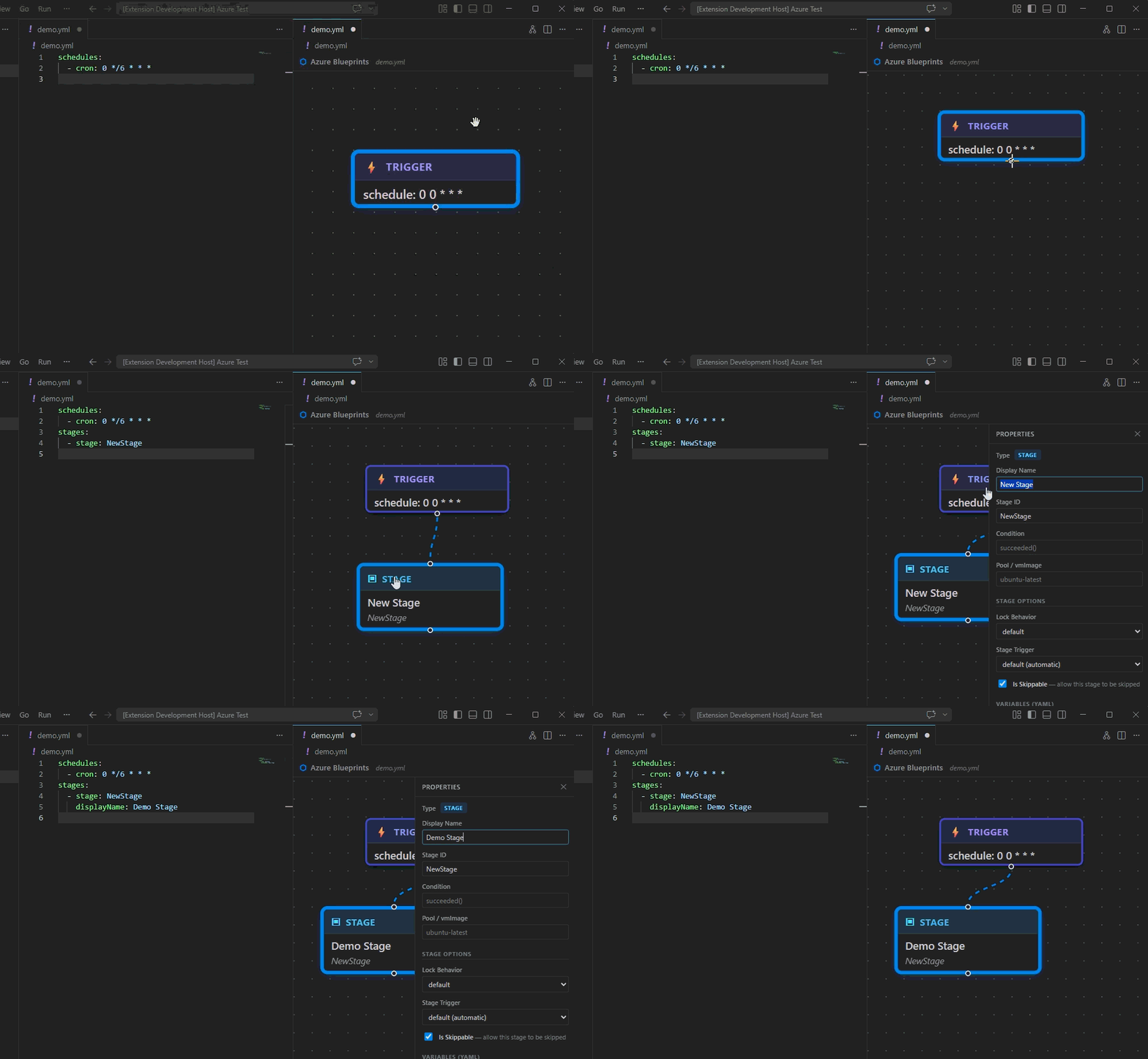
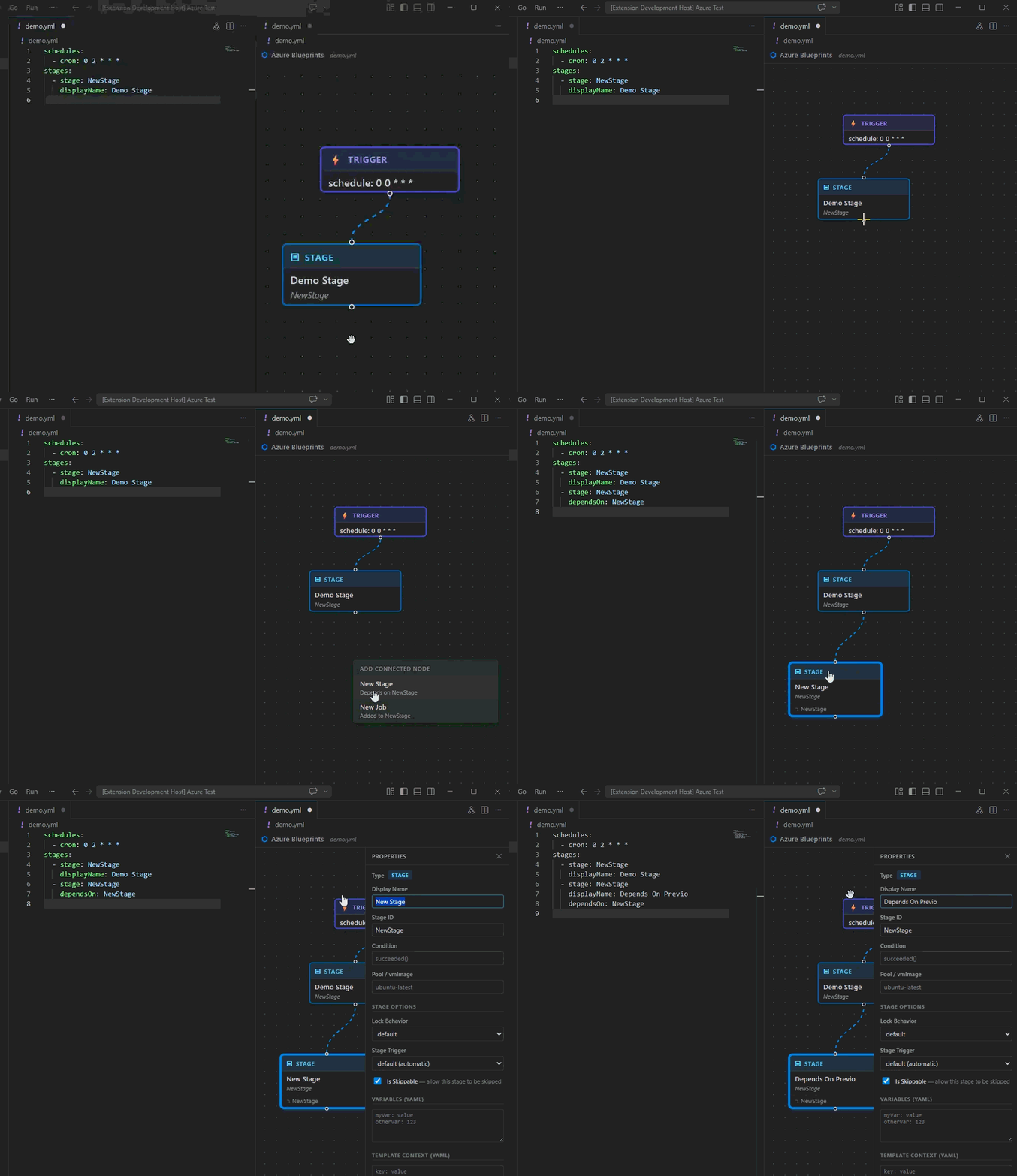
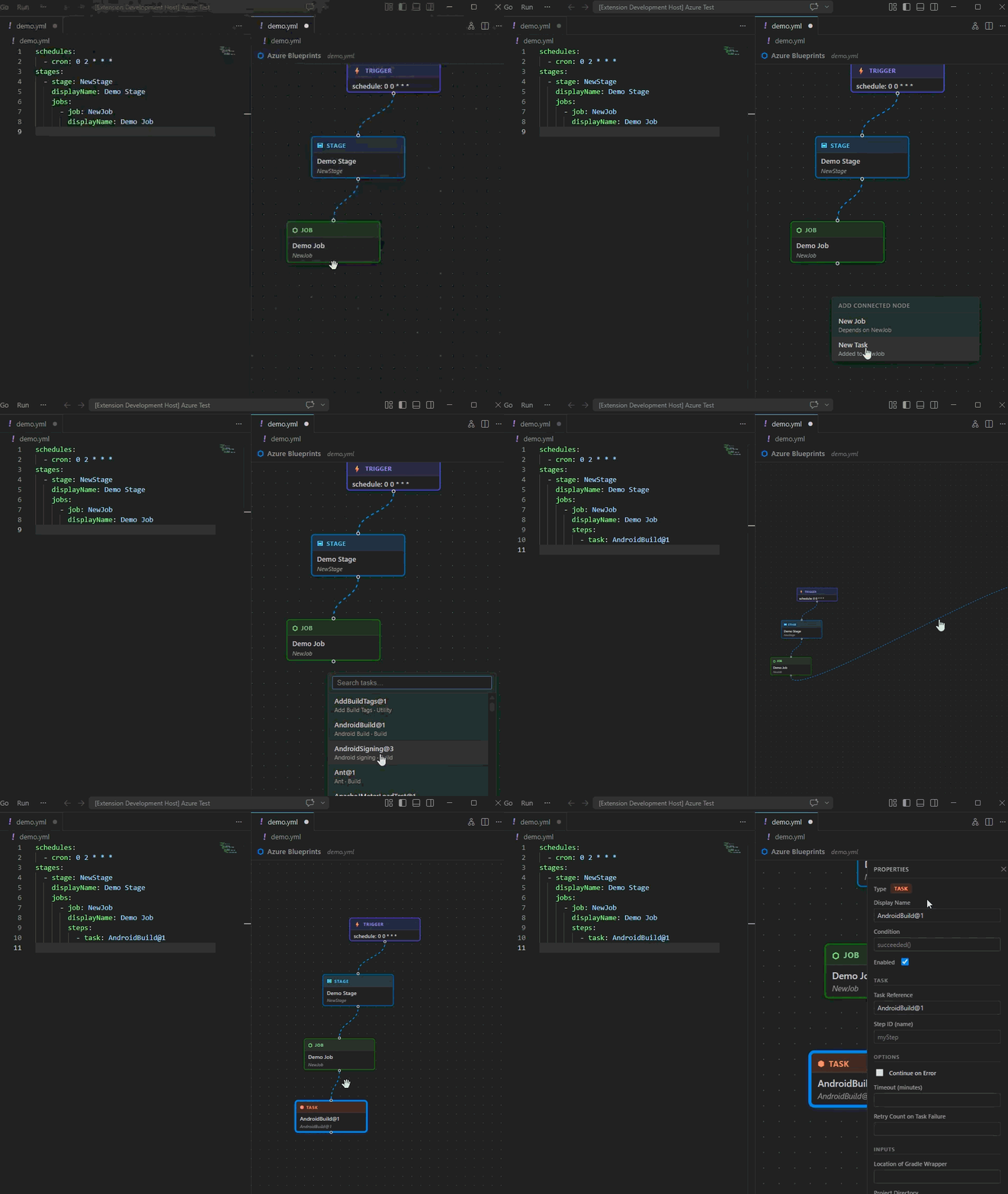
checkout: selfandcheckout: nonenodes. - Edge-drop context menu – Drag from a stage or job node to choose whether to add a dependent stage, a job inside a stage, or a new task from the catalog.
- Multiplicity constraints – Job→task and task→task connections are 1:1: inserting or dragging automatically appends to the end of the chain rather than forking it.
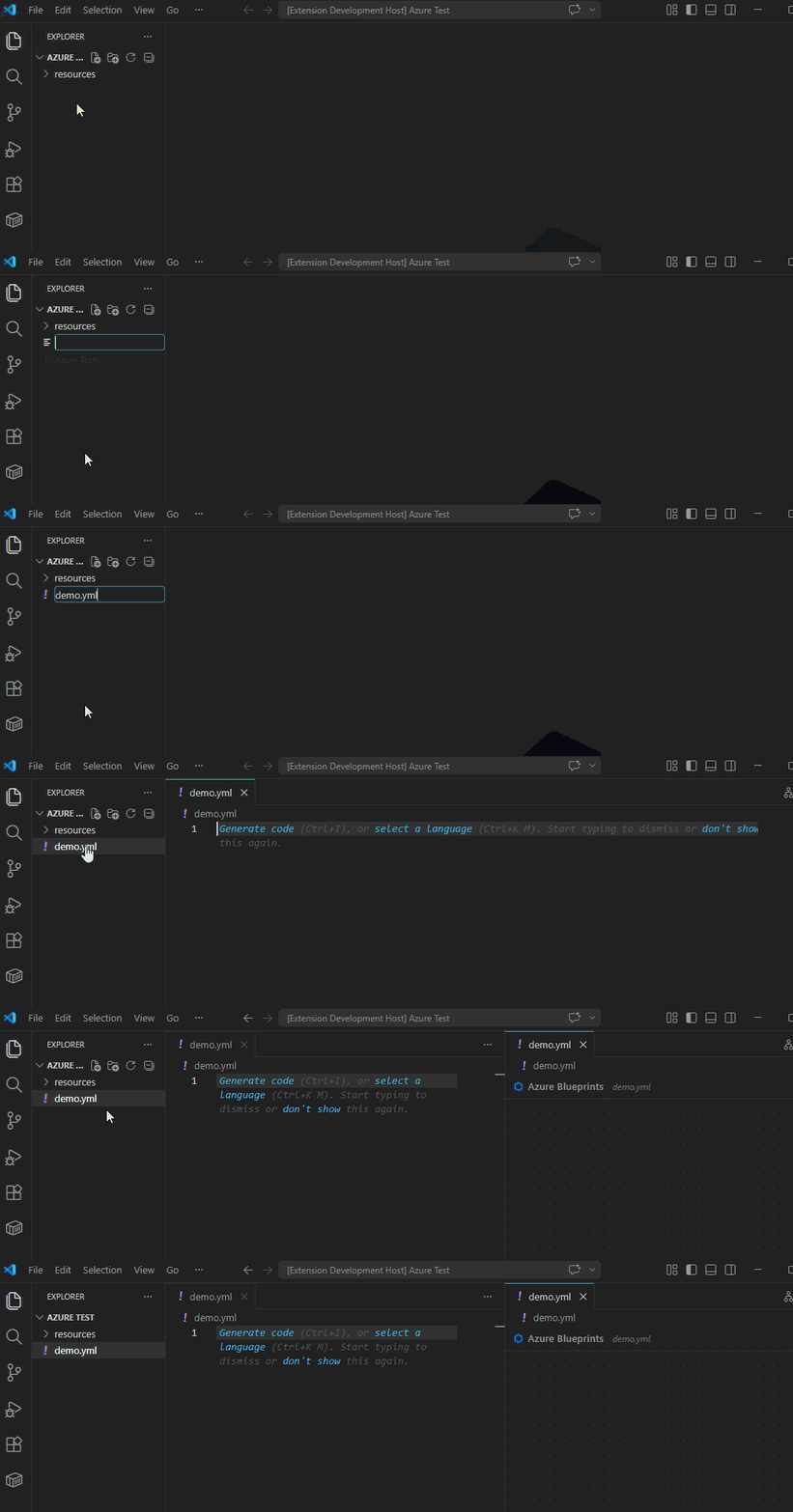
- Custom editor workflow – Open supported pipeline YAML files in a dedicated graph editor from the Explorer or command palette.
How It Works
- Open a supported Azure DevOps pipeline YAML file such as
azure-pipelines.yml. - Run Open as Pipeline Graph Editor from the Explorer context menu or command palette.
- Edit the graph and keep the YAML synchronized as you make changes.
Walkthrough
Open the graph editor
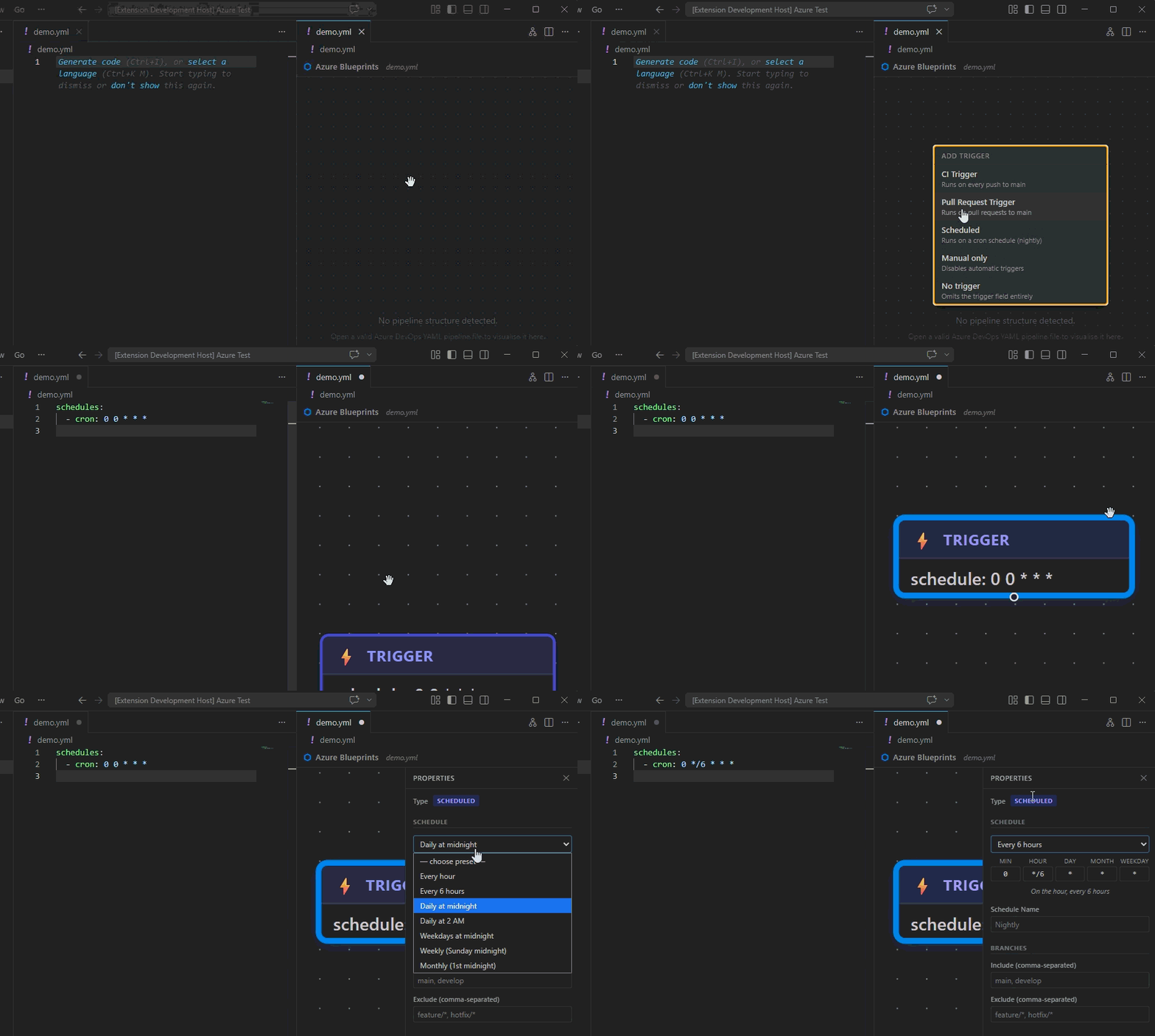
Add the first trigger node
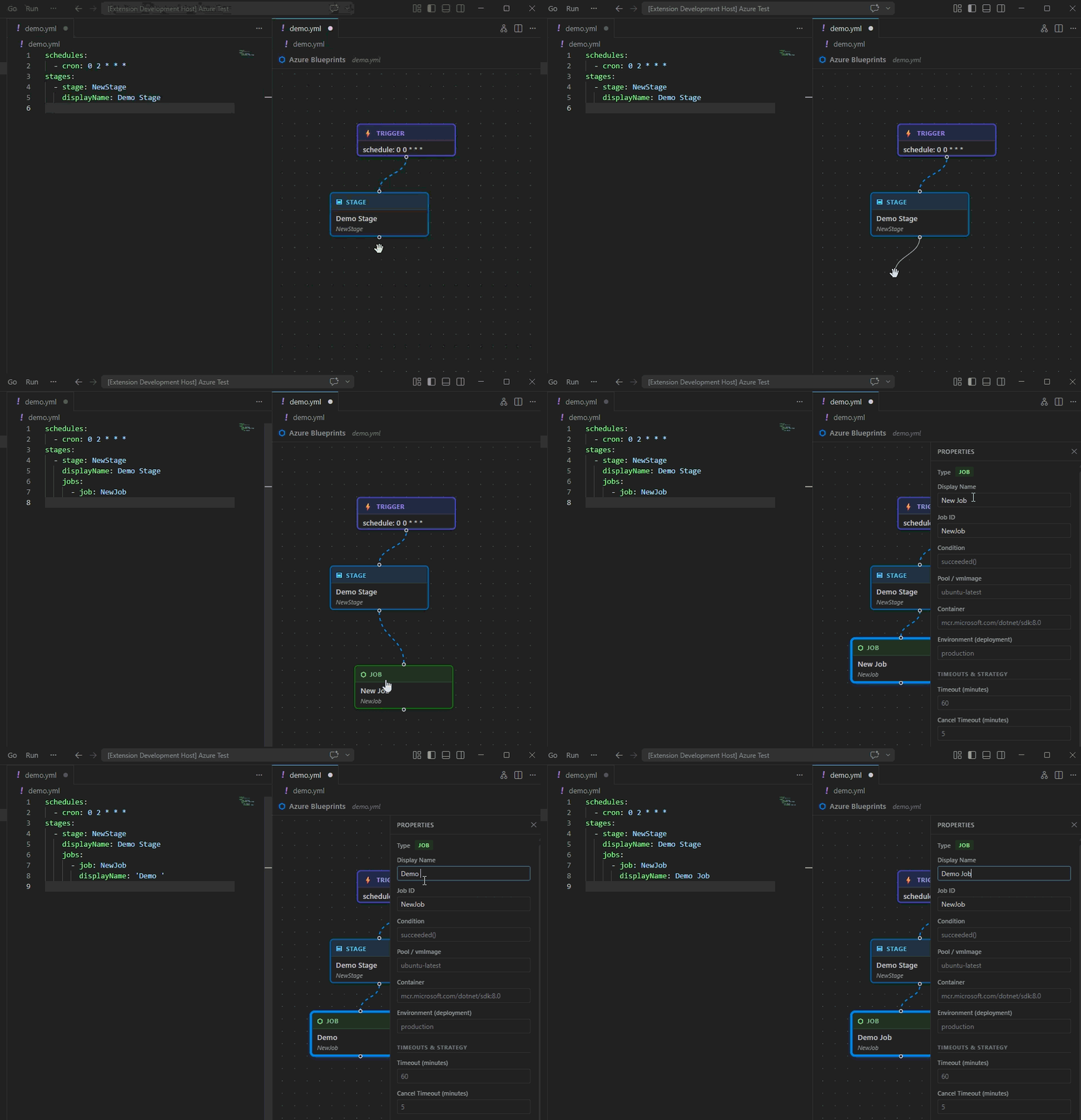
Add a stage
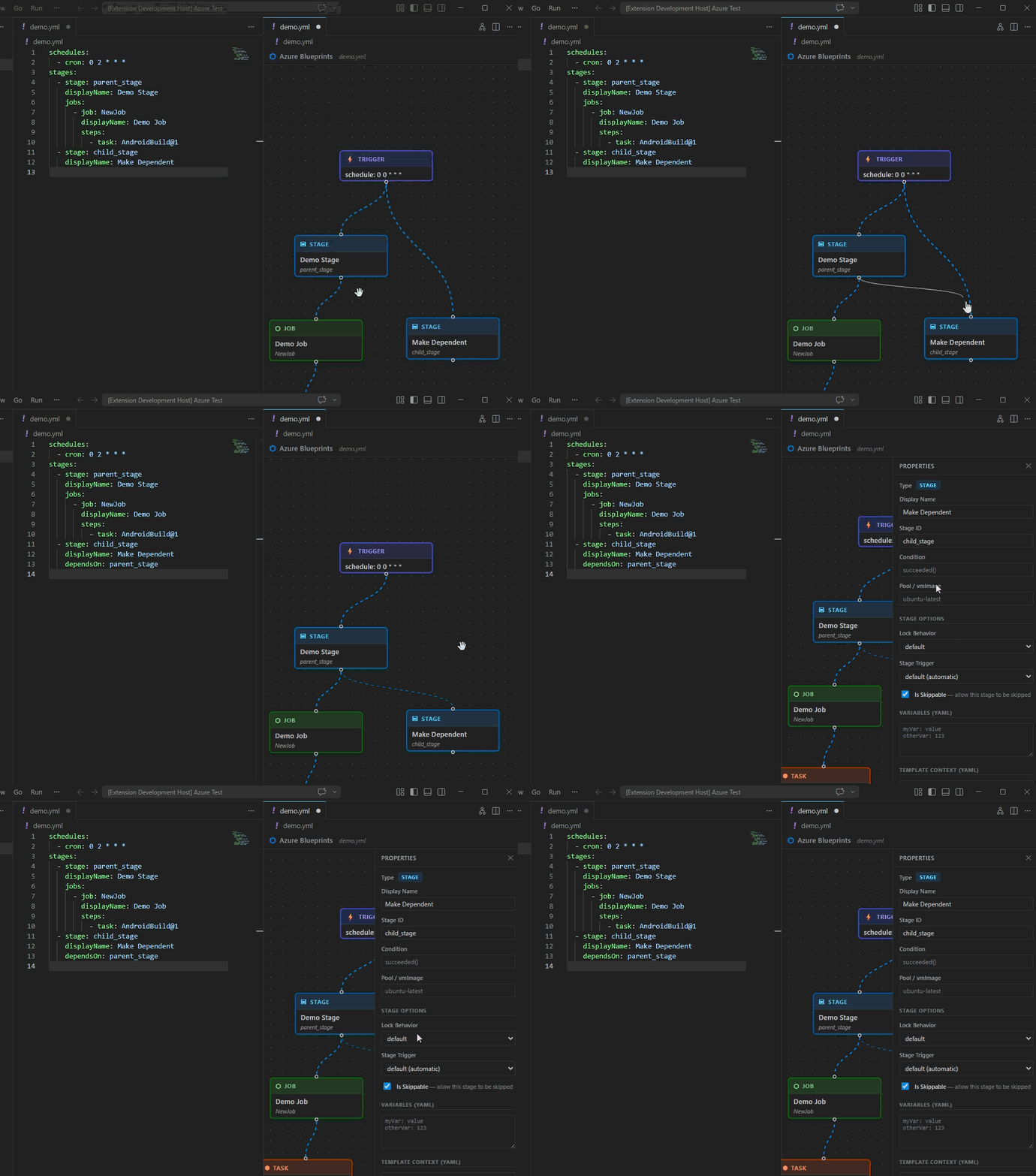
Add a stage dependency
Add a job
Add a job dependency
Add a task
Architecture
| Module | Responsibility |
|---|---|
| src/extension.ts | VS Code extension entry point; registers the editor and command |
| src/PipelineEditorProvider.ts | Custom text editor provider; owns the webview and document↔webview message bus |
| src/taskCatalog.ts | Fetches and caches the Azure DevOps task catalog via OAuth |
| webview-ui/src/pipelineConverter.ts | YAML ↔ ReactFlow graph conversion logic |
| webview-ui/src/App.tsx | Root React component; wires graph canvas, panels, and menus |
| webview-ui/src/components/PipelineGraph.tsx | ReactFlow canvas with node/edge rendering |
| webview-ui/src/components/PropertiesPanel.tsx | Sidebar panel for selected node properties |
| webview-ui/src/components/ContextTaskMenu.tsx | Right-click menu for inserting pipeline tasks |
| webview-ui/src/components/ContextEdgeMenu.tsx | Edge-drop context menu shown when dragging from a stage or job node |
| webview-ui/src/components/ContextTriggerMenu.tsx | Right-click menu shown on empty canvas to select a trigger type |
API / Exports
pipelineToGraph(yaml: string): { nodes, edges }
Parses an Azure DevOps YAML pipeline string and returns ReactFlow nodes and edges representing the trigger → stage → job → task hierarchy.
graphToPipeline(nodes, edges): string
Serialises a ReactFlow graph back to Azure DevOps YAML.
insertTaskNode(input: InsertTaskInput, nodes, edges): { nodes, edges }
Appends a new task node to the graph, auto-connecting it to the deepest leaf, and returns the updated nodes and edges.
insertTriggerNode(nodes, edges, triggerType: TriggerType): { nodes, edges }
Adds (or replaces) the trigger node in the graph with the given trigger type, preserving all other nodes and edges.
class PipelineEditorProvider
VS Code CustomTextEditorProvider implementation. Use PipelineEditorProvider.register(context) to activate.
fetchTaskCatalog(): Promise<TaskCatalogItem[]>
Returns the full Azure DevOps task catalog for the configured organisation. Results are cached for the lifetime of the extension host.
clearTaskCatalogCache(): void
Clears the in-memory task catalog cache, forcing the next fetchTaskCatalog() call to re-fetch.
findTaskInputs(taskRef: string): TaskInputDefinition[]
Looks up the cached input schema for a task reference (e.g. DotNetCoreCLI@2). Returns an empty array if the catalog has not yet been fetched or the task was not found.
parseInputsRaw(raw: string | undefined): Record<string, string>
Parses a YAML map string (the inputsRaw field stored on task nodes) into a plain Record<string, string>. All values are coerced to strings. Returns {} for undefined, malformed YAML, or YAML that is not a mapping.
Template node architecture
Template references in Azure DevOps YAML (- template: path.yml) are parsed at all three pipeline levels:
| Level | YAML context | Graph column | Node templateLevel |
|---|---|---|---|
| Stage | stages: list |
Stage (col 0) | 'stage' |
| Job | jobs: list (inside a stage or top-level) |
Job (col 1) | 'job' |
| Step | steps: list |
Task (col 2) | 'step' |
Template nodes store details.templatePath (the file path string) and details.parametersRaw (YAML-encoded parameters). Editing either field in the Properties panel immediately re-serializes the YAML.
Navigating into a template
Double-click a template node to navigate into the referenced file. The editor switches to the template’s graph and displays a breadcrumb trail at the top. Click any breadcrumb entry to navigate back.
Expanding a template inline
Right-click a template node and choose Expand template inline. The extension reads the referenced file and inserts its internal nodes (stages, jobs, or tasks) directly into the current graph in place of the template node. Expanded nodes are visually distinguished with:
- A dashed purple border on each node.
- A
⇒ <template path>badge at the bottom of each node.
To collapse the sub-graph back to the template placeholder, right-click any expanded node and choose Collapse back to template. All expanded nodes are removed and the original template node is restored, including its external connections.
Note: Expand/collapse is a view-only operation. It does not modify the pipeline YAML.
Getting Started
Prerequisites
- Node.js 18+
- VS Code 1.85+
Install & Build
npm install
npm run build
Press F5 in VS Code to launch the extension in a new Extension Development Host window.
Running Tests
npm test
Coverage
npm run test:coverage
Configuration
azureBlueprints.organizationUrl– Azure DevOps organization URL used to fetch the task catalog, for examplehttps://dev.azure.com/myorg.
Changelog
- 2026-04-07: Added task input schema — selecting a
task:node now fetches structured input definitions from the Azure DevOps task catalog and renders them as typed form fields (text, checkbox, select, textarea) grouped by category in the Properties panel; 5 new tests forparseInputsRaw(221 total). - 2026-04-07: Added template node support — stage, job, and step template references (
- template: path.yml) are now parsed, displayed as distinct purple nodes, and round-trip through the YAML converter with fullparameters:block support; 13 new tests (254 total). - 2026-04-07: Added live template parameter resolution — when a template node’s path resolves to a local file the extension reads and parses its
parameters:block and returnsTemplateParamDefinition[]to the webview; the Properties panel renders each parameter as a typed field (text, number, boolean checkbox, or values-based select); unresolvable templates fall back silently to the raw YAML textarea.
Changelog
- 2026-04-04: Switched the project to MIT open-source licensing, added public GitHub repository metadata, and updated the marketplace listing/support links for public distribution.
- 2026-04-02: Initial README generated from codebase.
- 2026-04-02: Fixed double-delete bug in PipelineGraph — node deletions now correctly sync the YAML in one keypress for both isolated nodes and nodes with connected edges.
- 2026-04-02: Fixed node deletion not immediately updating YAML — ReactFlow fires
onEdgesChangebeforeonNodesChangeduring deletion; edge removals now defer theironGraphChangecall sohandleNodesChangecan cancel it and write the YAML once with both correct nodes and edges. - 2026-04-03: Enforced single-input-edge constraint — connecting or re-routing an edge to a node that already has an incoming connection now replaces the old edge instead of creating a duplicate.
- 2026-04-04: Added trigger creation context menu — right-clicking an empty canvas with no trigger node now shows a menu with five trigger types (CI, PR, Scheduled, Manual, None).
- 2026-04-04: Added schedule trigger fields — Scheduled trigger properties panel exposes cron expression, schedule name, branches include/exclude, Always, and Batch; fully round-trips through YAML.
- 2026-04-04: Added CI trigger fields — CI trigger properties panel exposes Branches include/exclude, Paths include/exclude, Tags include/exclude, and Batch;
PipelineTriggertype expanded accordingly; 16 new tests (125 total). - 2026-04-03: Added PR trigger fields — PR trigger properties panel exposes Branches include/exclude, Paths include/exclude, Auto Cancel, and Drafts; added
PipelinePrTriggertype;getTriggerTypenow detectspr:blocks; 16 new tests (141 total).